4. Tutorial: The NBP Sample Cruise
OpenRVDAS ships with a complete sample cruise — real sensor data recorded
aboard the R/V Nathaniel B. Palmer in 2014 — that runs on any
installation with no hardware attached. This tutorial walks it end to
end: simulate the ship’s sensors, load the cruise definition, trace a
record through every stage of the system, and poke at the moving parts
with listen. Everything later in the Guide refers back to it.
You will need:
- a standard installation (section 3. Installation), with “yes” answered to installing and running the data simulator;
- a browser pointed at the web console, logged in (section 2. Working with a Running Installation);
- a terminal on the OpenRVDAS machine, as the OpenRVDAS user, in the
/opt/openrvdasdirectory, with the virtual environment activated; - the cruise mode set to
off, if a cruise definition is already loaded in the console. Running loggers hold the simulated serial ports, and the first half of this tutorial needs those ports free.
Simulating Live Data
A data acquisition system without instruments is hard to learn from, so
the installer sets up a simulator. Under supervisor, a program named
simulate:simulate_nbp runs
simulate_data --config test/NBP1406/simulate_NBP1406.yaml
which creates a simulated serial port for each of the Palmer’s
instruments — /tmp/tty_gyr1 for the gyrocompass, /tmp/tty_s330 for
the Seapath 330 GPS, /tmp/tty_mwx1 for a weather station, and a dozen
and a half more — and replays each instrument’s recorded data through
it at the original pace, looping back to the beginning when it reaches
the end. As far as anything downstream can tell, the ship is underway.
Check that it’s running with supervisorctl status (or the supervisor
web console on port 9001); if simulate:simulate_nbp isn’t RUNNING,
start it with supervisorctl start simulate:simulate_nbp.
Now have a first look at the data. In your terminal, run a minimal
logger — one reader, no transforms, no writers, so the records go to
your screen (this is why the cruise mode must be off: a running
gyr1 logger would be reading the same port, and the two of you
would each get fragments of the stream):
listen --serial port=/tmp/tty_gyr1
You should see the NBP’s gyrocompass reporting its heading, one NMEA sentence at a time:
$HEHDT,218.53,T*12
$HEHDT,218.53,T*12
$HEHDT,218.54,T*11
Do you see data? Hurrah. Stop it with Ctrl-C.
The same simulate_data command works on your own recorded data — give
it a single feed with --serial /tmp/tty_mysensor --filebase
path/to/logfiles, or a YAML file of many feeds with --config — which
makes it the test harness for everything you’ll build in section
5. Setting Up Your Own Vessel:
develop and debug against replayed data at your desk, then point the
finished configuration at the real ports.
Loading the Cruise Definition and Starting Loggers
In the console, after logging in, select “Load configuration file” and load the sample cruise definition:
test/NBP1406/NBP1406_cruise.yaml
The console will fill with a table of loggers, one per instrument, all
in their off configurations:
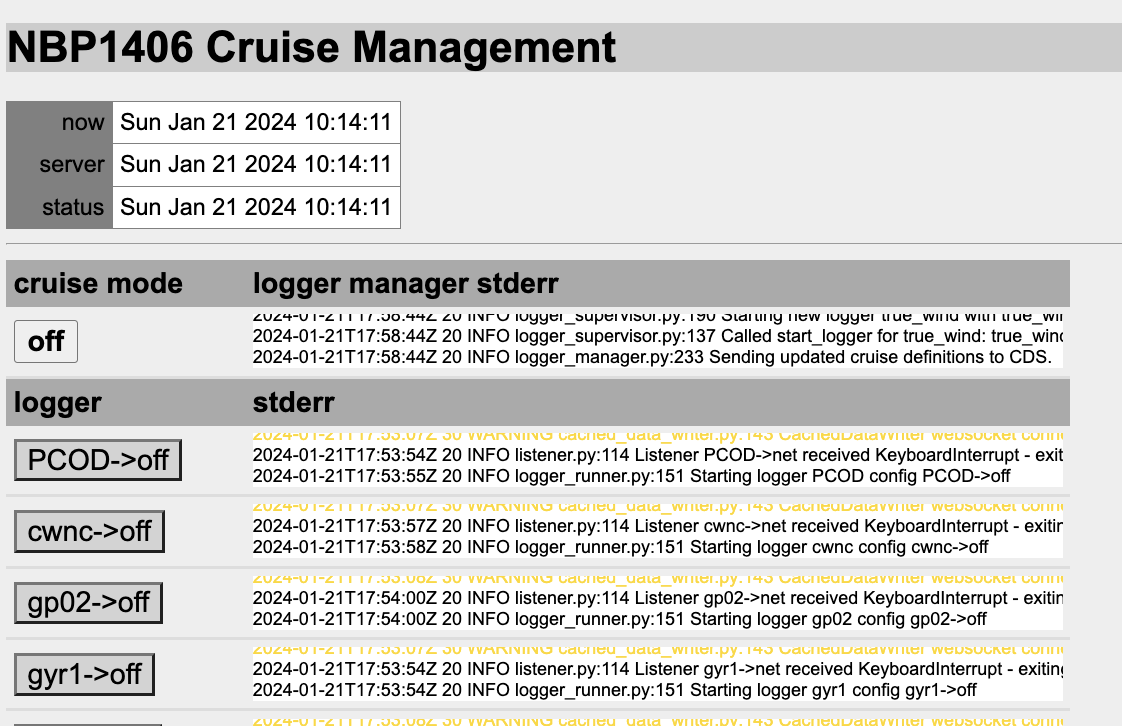
Everything in that table came from the one file you loaded: the
loggers, the configurations each can run, and the cruise modes that
assign them. The sample cruise defines five modes — off, no_write,
write, and no_write+influx / write+influx variants that also feed
the InfluxDB database if one is installed.
Select the mode button and change the mode to no_write, as described
in Starting and Stopping Loggers.
Over the next few seconds, the loggers will pass through yellow to
green: each one will now be reading its simulated instrument and
broadcasting the records on UDP port 6224 — but writing nothing to
disk.
Now change the mode to write. The loggers will stay green, and
logfiles will begin to grow. In your terminal:
tail -f /var/tmp/log/gyr1/raw/NBP1406_gyr1-$(date -u +%Y-%m-%d)
will show the gyrocompass’s records being written as they arrive, each with the timestamp the logger added on receipt.
Why
/var/tmp/log? The sample cruise deliberately writes somewhere disposable — on most Linux systems, files under/var/tmpthat go untouched for 30 days are cleaned up automatically. That is exactly right for a demo and exactly wrong for a cruise; when you adapt the sample for a real vessel, one of the first things to change isfile_rootto a more durable location (see Writing a Cruise Definition).
Following a Record Through the System
With the system in write mode, here is the life of a single record —
one heading sentence from the gyrocompass. This is the heart of the
tutorial: every OpenRVDAS installation, however large, is this story
repeated per instrument.
-
The instrument speaks. The simulator writes
$HEHDT,218.53,T*12to the simulated serial port/tmp/tty_gyr1, exactly as the Palmer’s gyrocompass did in 2014. - A front-line logger captures it. The
gyr1logger is running itsnet+fileconfiguration, a four-component pipeline:- a
SerialReaderreads the sentence from the port; - a
TimestampTransformprepends the time of receipt:2026-10-28T18:38:55.183000Z $HEHDT,218.53,T*12; - a
LogfileWriter, mirrored off the timestamp transform, appends that timestamped record to/var/tmp/log/gyr1/raw/NBP1406_gyr1-2026-10-28— the raw record is safely on disk before anything else touches it; - a
PrefixTransformprepends the logger’s name, and aUDPWriterbroadcasts the result on port 6224:gyr1 2026-10-28T18:38:55.183000Z $HEHDT,218.53,T*12.

Note what the front-line logger doesn’t do: no parsing, no computation. Timestamp it, store it, pass it on — keeping the logger closest to the instrument too simple to fail is deliberate, and section 5 returns to it as a design principle.
- a
-
One second-line logger parses for everyone. A logger named
parse_datareads everything broadcast on port 6224 with aUDPReader. ItsParseTransformlooks up thegyr1prefix in the sample’s device definitions (test/NBP1406/devices/nbp_devices.yaml), finds thatgyr1is an NMEA MRU whoseHEHDTsentences carry a true heading, and emits a structured record with a named field:Gyr1HeadingTrue: 218.53. ItsCachedDataWriterthen sends that record to the cached data server. In an+influxmode, anInfluxDBWriteralso writes the record to the InfluxDB database. - Subscribers take it from there. The cached data server hands
the new value to whoever has subscribed to it: the console’s
display widgets; the
true_windsloggers, which combine heading with GPS course, speed and relative wind from two other instruments to compute true wind and write it back to the server as new fields; and anything else you point at it.
You can eavesdrop on every hop of that journey yourself, each with a
one-line listen command or less:
- the serial port:
listen --serial port=/tmp/tty_gyr1— but setgyr1tooffin the console first: a serial port has only one stream to give, and with thegyr1logger running, the two of you would each get fragments of it - the UDP broadcast — every instrument’s records interleaved:
listen --udp 6224 --write_file -. Only one process can bind the port, and in any active mode theparse_datalogger already has it, so setparse_datatooffin the console first (and back afterwards) - the parsed values, by name, from the cached data server — nothing
needs stopping, since the server is built for many subscribers:
listen --cached_data Gyr1HeadingTrue --write_file - - the file on disk:
tail -f /var/tmp/log/gyr1/raw/NBP1406_gyr1-<date> - the parsed values, as a display: with the system in a parsing mode,
open
http://openrvdas/display/nbp_dashboard.htmland watch the heading dial track the data.
Exploring with listen
The listen command you’ve been using is OpenRVDAS’s jack-of-all-trades:
it assembles a logger from command-line flags or a configuration file
and runs it in the foreground. Two more ways to use it complete the
tutorial.
Build a pipeline by hand. The gyr1 logger’s net configuration,
reconstructed flag by flag:
listen \
    --serial port=/tmp/tty_gyr1 \
    --transform_timestamp \
    --transform_prefix gyr1 \
    --write_file - \
    --write_udp 6224
Each flag adds a component; --write_file - means “and show it on
stdout”. (One gotcha worth knowing early: flag order matters —
readers, then transforms, then writers, in the order you want them
applied. Section
5. Setting Up Your Own Vessel
covers listen in earnest.)
Run a configuration straight from the cruise definition. Any logger configuration in a cruise definition file can be run by itself, by naming it after a colon:
listen test/NBP1406/NBP1406_cruise.yaml:gyr1-net
First set gyr1 to off in the console — two loggers can’t share one
serial port — then run the command above. You will then be running
exactly what the logger manager runs, but in the foreground of your own
terminal, with its errors in your face. That, in one sentence, is the
debugging method of section
9. Troubleshooting:
take the piece that’s misbehaving, run it by itself with listen, and
look at what it says. Make the habit now and the red buttons will never
scare you.
When you’re done exploring, set the system back to the mode you found
it in — and if this machine is anyone’s real installation, remember
that write mode is filling /var/tmp/log.